
WHY ITSLEARNING
See why schools choose a European LMS designed for education over generic platforms.
See why schools choose a European LMS designed for education over generic platforms.
itslearning empowers teachers and helps all students reach their full potential.

Translation generated by an AI translation service
Group work can be difficult to manage. Students often use different tools, files are stored in different places, and teachers have limited visibility into how a project is progressing.
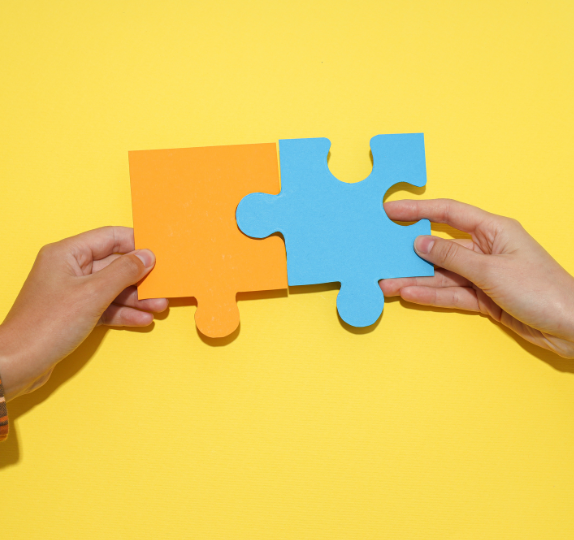
Collaboration Folders in itslearning address this. A Collaboration Folder is a shared workspace that a teacher creates inside a course. All assigned students can add, edit, and remove content in the same folder. Teachers control who participates, what content types are available, and when editing ends.
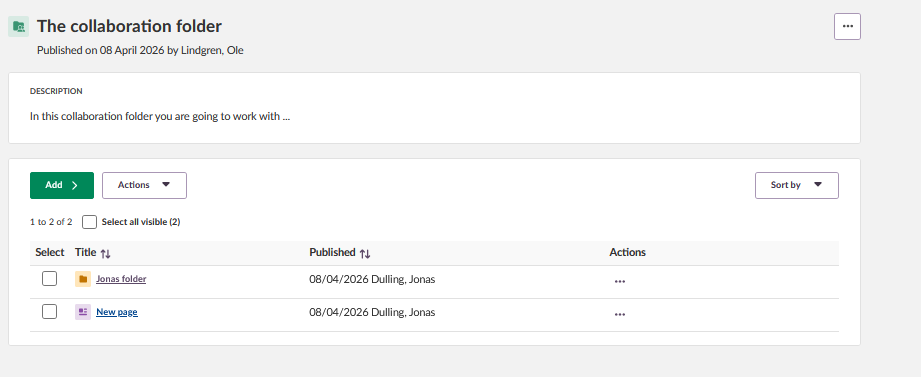
What Students Can Do
Teachers choose which content types students can create inside the folder. Options include files, folders, pages, links, discussions, and Microsoft Office or Collabora documents.
If Microsoft Office or Collabora tools are available on your site, students can work on the same document at the same time. This means a group can build a shared presentation together, directly inside itslearning.
Students can also upload individual files, such as research reports or supporting materials. All contributions are stored in one place, visible to everyone in the group.
A teacher assigns the folder to selected students or to pre-made course groups. Only assigned participants can view and work in the folder. This makes it possible to run several group projects in parallel within the same course, each with its own workspace.
Teachers also set a closing date. Before the closing date, students can add, edit, and remove content. After the closing date, students can still open the folder and read the contents, but they cannot make changes. Teachers retain full access at all times.
When group work takes place inside itslearning, teachers can follow the progress of a project without asking students where files are stored. All contributions are visible in one place throughout the activity.
When the project ends, the teacher can review the completed work directly in the folder. Students can also return to the folder to read the contents after the closing date.
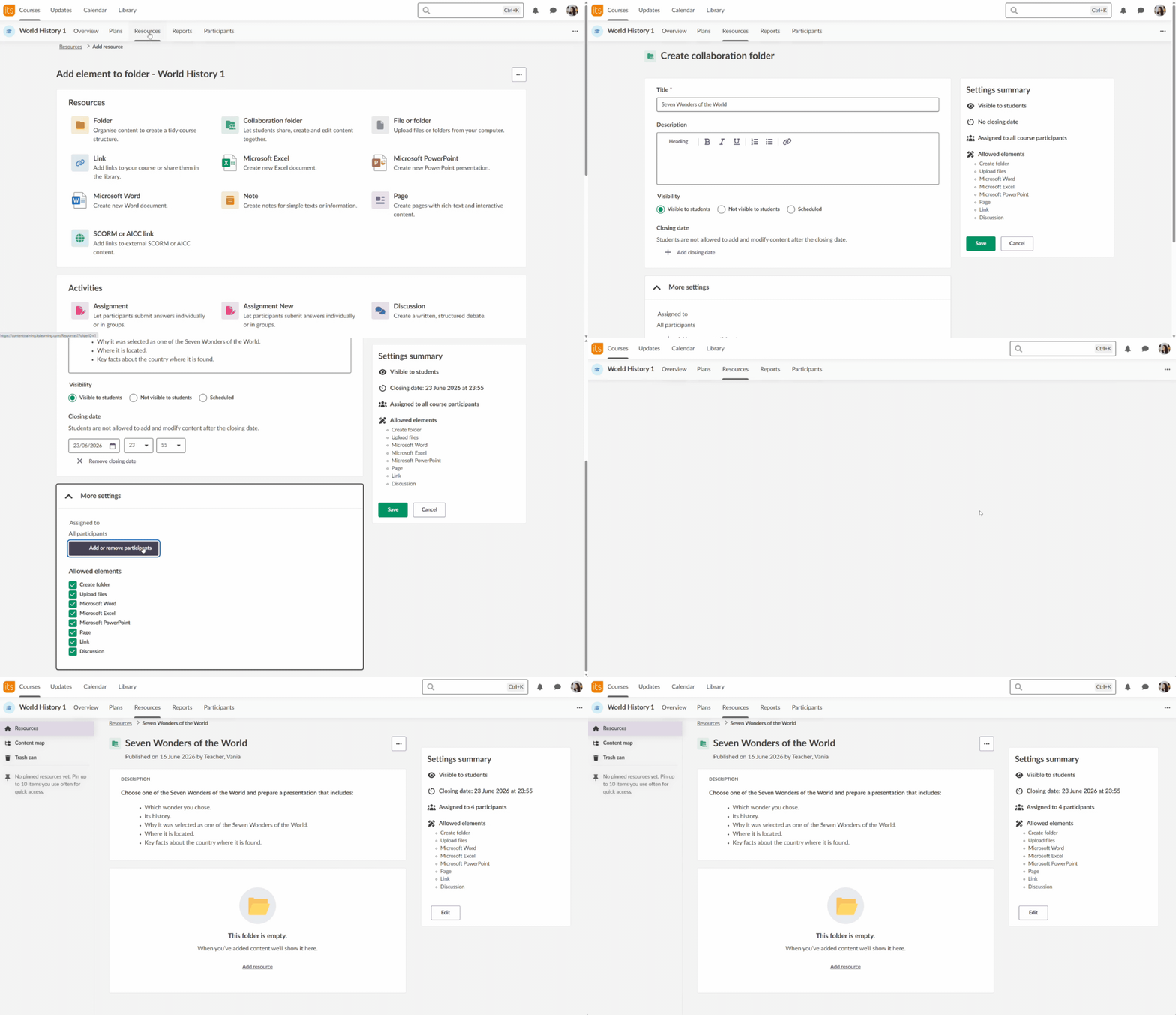
A teacher sets up a group project. Students follow the instructions and present their findings as a group.
The teacher creates a Collaboration Folder, assigns the relevant student groups, enables documents and file uploads, and sets a closing date. Each group has its own folder.
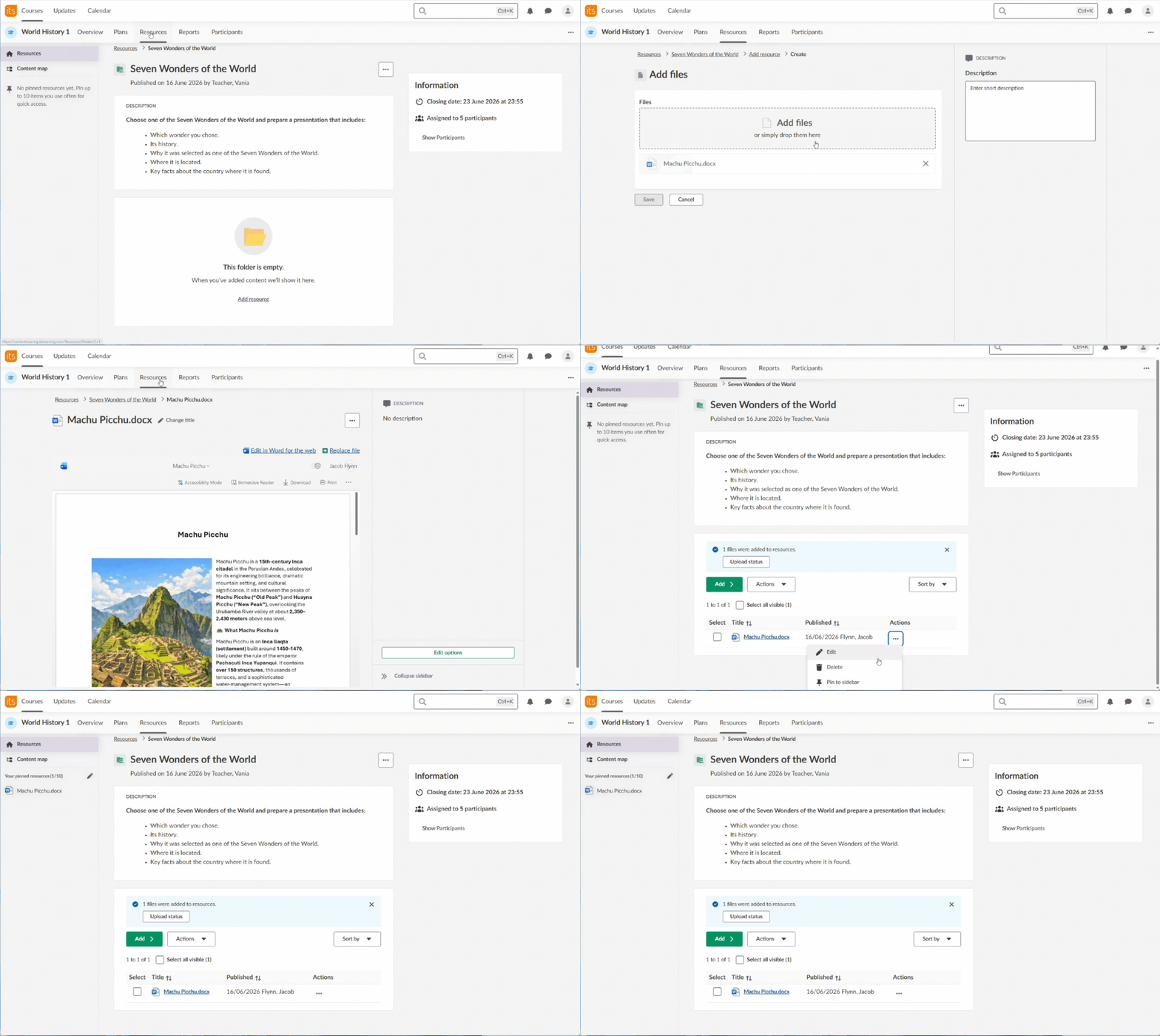
Students upload their individual research reports and work together on a shared presentation inside itslearning. When the closing date passes, the teacher can review all contributions in one place.
Collaboration Folders bring group work into a single, structured workspace inside itslearning. Teachers can see student contributions throughout the project. Students always know where to find shared materials and where to submit their work. Collaboration Folders are available in the Resources section of any course.
For more information, please read our support articles:
This feature is part of the German Development Project (GDP), a collaboration between four German states and itslearning aimed at enhancing digital education in Germany through tailored product developments. Learn more about the GDP roadmap and what other features you can expect to see. For German readers, more details on the German Development Project are made available on our webpages.