
WHY ITSLEARNING
See why schools choose a European LMS designed for education over generic platforms.
See why schools choose a European LMS designed for education over generic platforms.
itslearning empowers teachers and helps all students reach their full potential.
Translation generated by an AI translation service
If you create course content in itslearning, you will likely use Page or Note today. We are bringing these together into one tool. Page becomes the common way to create and structure content, with an updated interface that works across devices.
The update is a step towards simpler content creation, with improved accessibility and better support for tablets.
Page is the common tool for creating and structuring content in itslearning. It replaces the previous Note and legacy Page creation flows, bringing two tools into one.
The update brings improved accessibility and better responsiveness across device sizes. Your existing content carries over: content already in Page is supported in the updated experience, and Note content will also be supported once the later migration takes place.
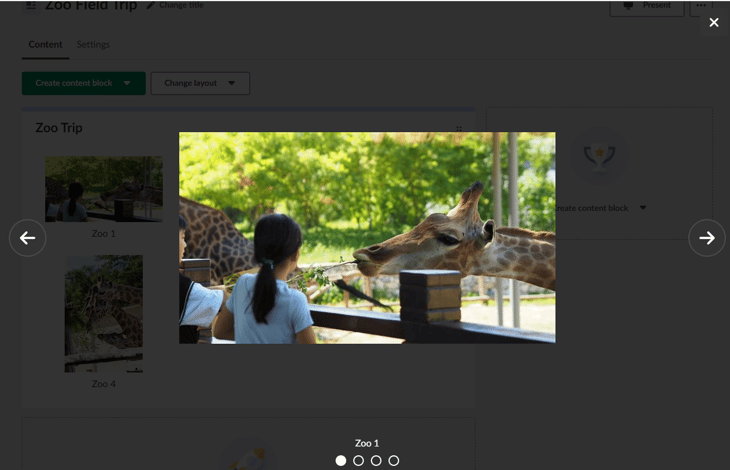
For teachers using the image gallery, image blocks now support image carousel functionality.
How Page works
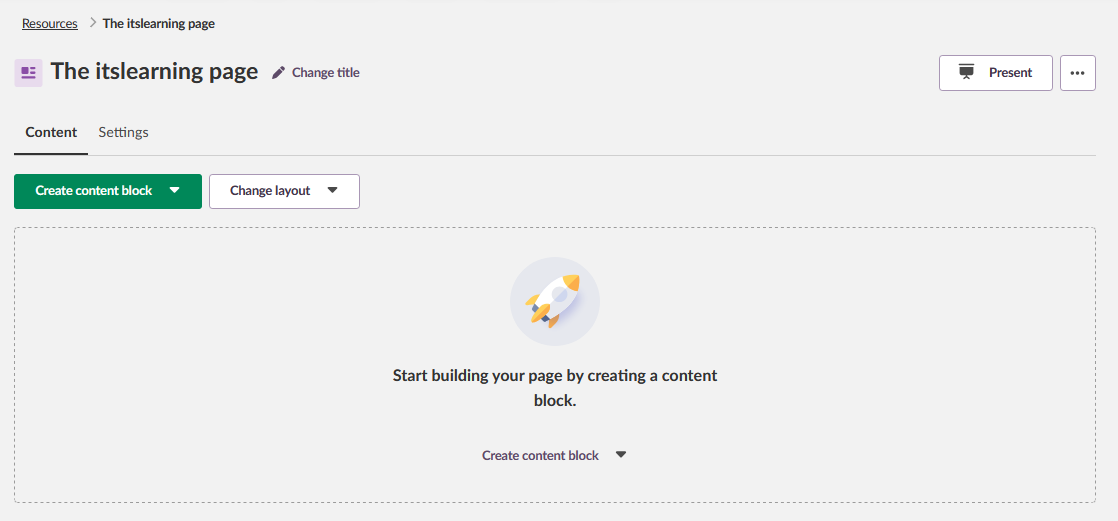
A Page is built from content blocks. You add the blocks you need and arrange them in one or two columns. You can choose between three layouts:
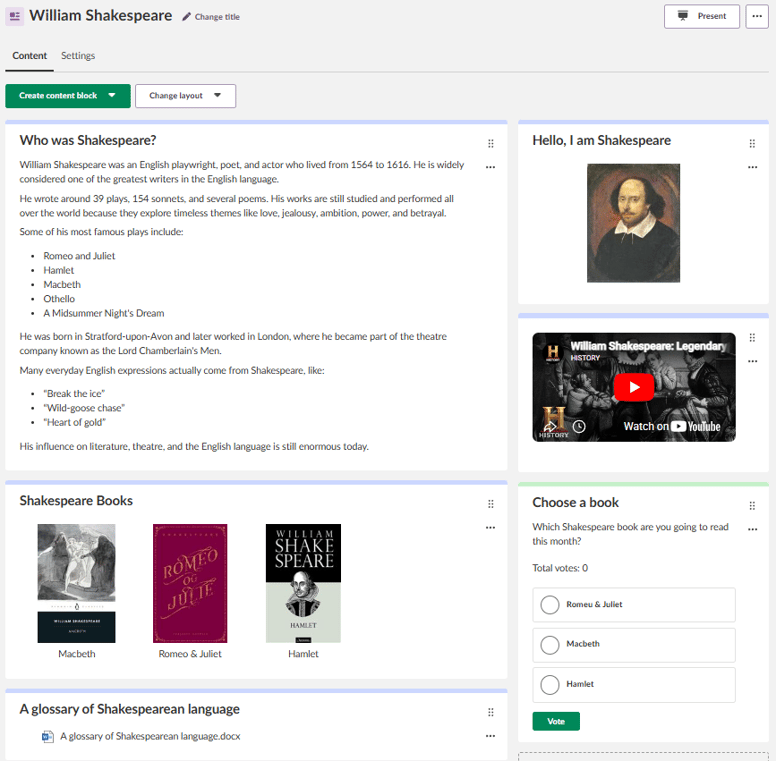
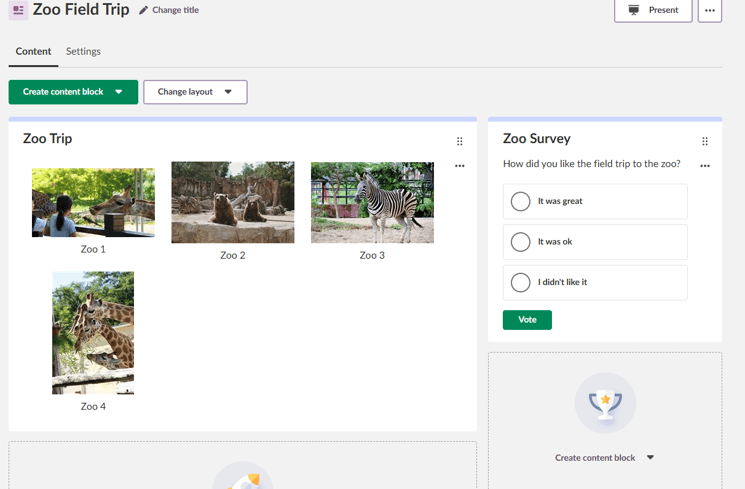
Content students can listen to: Text and media blocks include a Listen button. This opens the content in Immersive Reader, which reads the text aloud. The Listen button remains available in presentation mode meaning students can listen along while you teach.
Presenting and printing: Page includes a presentation mode that hides editing controls and shows the content in a presentation-friendly view. You can also print a Page using your browser's print function.
Organising content blocks: Move content blocks by dragging them with the six-dot handle, or use the options menu to move them up, down or to another column. Archive the blocks you no longer need, and restore them whenever they become useful again.
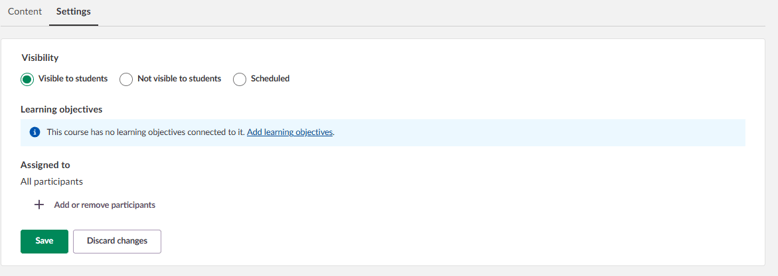
For each Page you can:
The updated Page tool is built to work on tablets. Two-column Pages show side by side in both portrait and landscape orientation, and you can drag and drop content blocks using the six-dot handle.
You don't need to start over. Existing content moves to the updated Page tool automatically.
You will find step-by-step guidance in the support documentation: Page: create and manage content (teacher)
This feature is part of the German Development Project (GDP), a collaboration between four German states and itslearning aimed at enhancing digital education in Germany through tailored product developments. Learn more about the GDP roadmap and what other features you can expect to see. For German readers, more details on the German Development Project are made available on our webpages.